












What should a therapist do when AI Scribe stops recording or the note draft does not appear?
Most AI Scribe recording issues are caused by a phone setting, a blocked microphone permission, a Bluetooth connection, an incoming call, or a weak internet connection not the documentation tool itself. A one-minute setup check before every session prevents the majority of these issues. If the note draft does not appear after recording, check your Wi-Fi or cellular connection and wait for the progress bar to complete before closing the app.
Table of Contents
Key Takeaways
- The goal is to give patients a clear path from Google to a scheduling request.
- The Google booking link should point to the practice website page where the HelloNote Schedule Widget is embedded.
- HelloNote’s current setup path is Settings > Schedule Widget, not Settings > Patient Portal.
- Current HelloNote guidance says Schedule Widget requests are added to the Waitlist for review.
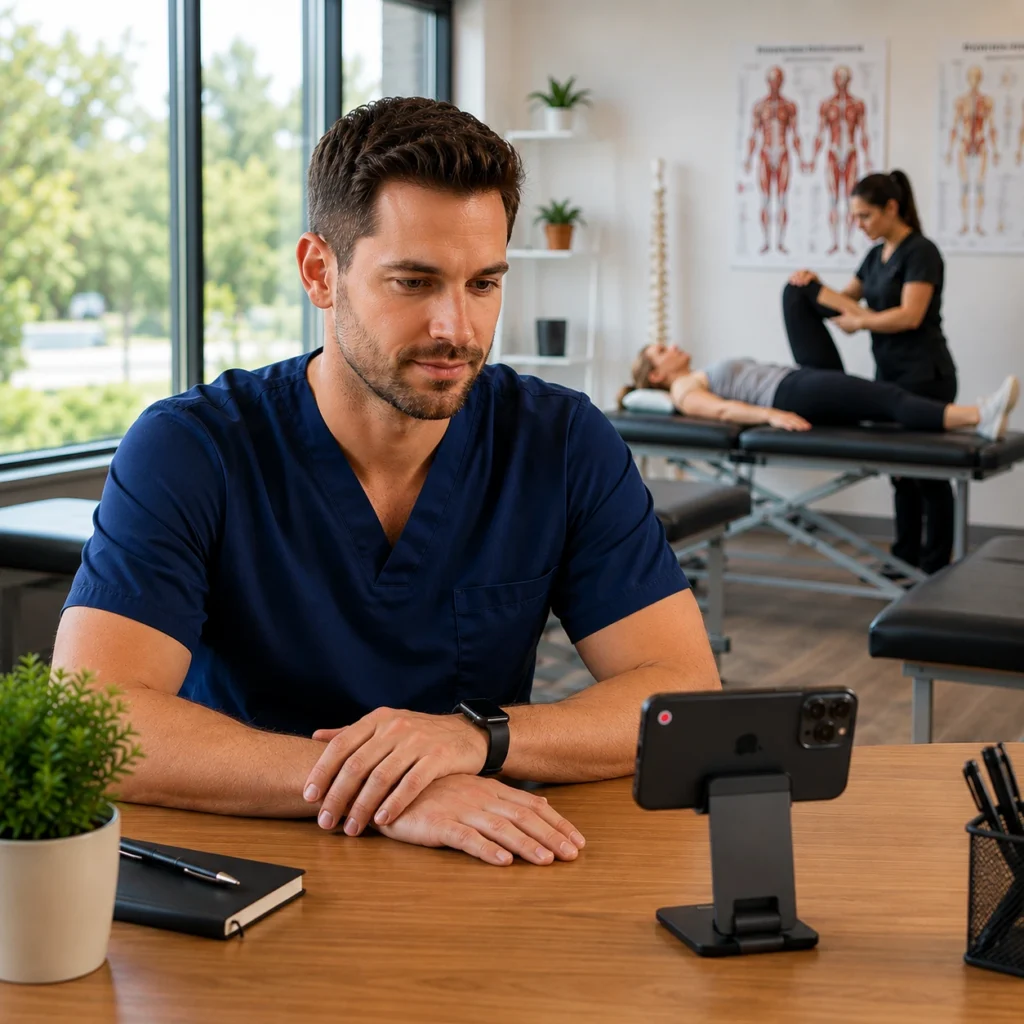
You tap record at the beginning of a session, place your phone on the desk, and continue with treatment. Later, you discover that the recording stopped early, the audio was unclear, or the note draft is missing part of the session.
In many cases, the issue is not the documentation workflow itself. It may be caused by a phone setting, a blocked microphone permission, a Bluetooth connection, an incoming call, or noise in the treatment room. A one-minute setup check can help you prevent many common AI scribe recording issues before the session begins.
This guide covers every common cause of AI Scribe recording issues, the steps to check before each session, and what to do when something goes wrong after the recording ends.
Why AI Scribe Recordings Can Be Interrupted
AI scribe recordings can be interrupted by phone settings, connectivity issues, Bluetooth devices, incoming calls, or background noise. Most of these causes are preventable with a quick pre-session check.
Phones and laptops are designed to save battery, manage notifications, and connect automatically to nearby devices. These features are useful during your day, but they can sometimes affect a recording session.
For example, your phone may lock while you are treating a patient. A paired set of earbuds may quietly become the active microphone. An incoming call may interrupt the recording. A nearby fan may make the therapist and patient harder to hear clearly.
Common causes of AI scribe recording issues include:
- Screen lock or sleep mode
- Incoming calls and notifications
- Blocked microphone permissions
- Bluetooth devices taking over the microphone
- Weak or dropped internet connection
- Low battery or power-saving settings
- Background noise
- Poor device placement
The good news is that most of these checks take only a few seconds.
The One-Minute AI Scribe Pre-Session Checklist
Before every session, a quick review of your screen, microphone, Bluetooth, battery, internet connection, and room setup can prevent most common AI scribe recording issues. |
Before you start recording, take a moment to run through this checklist. This routine can be added to your usual session setup, just like preparing the treatment space or reviewing the patient chart.
THE ONE-MINUTE AI SCRIBE PRE-SESSION CHECKLIST |
☐ Keep your screen active during the session. |
☐ Turn on Do Not Disturb or Focus Mode. |
☐ Confirm that your browser has microphone access. |
☐ Disconnect earbuds, headsets, smartwatches, and other unnecessary Bluetooth devices. |
☐ Check your battery level or connect the device to power. |
☐ Confirm you have a stable Wi-Fi or cellular connection before starting the session. |
☐ Place the phone, tablet, or laptop where it can clearly hear the session. |
☐ Move the device away from fans, air conditioners, and direct airflow. |
☐ Reduce avoidable background noise. |
☐ Test your microphone briefly before the session starts. |
☐ Confirm patient consent before using Ambient Mode. |
How to Keep Your Screen Active During a Session
HelloNote AI Scribe is designed to keep your screen from going to sleep during an active recording. If your device does not respond to this setting, adjusting the screen timeout manually takes under 30 seconds.
HelloNote AI Scribe is designed to keep your screen from going to sleep while a recording is active. In most cases this works automatically and you will not need to adjust your screen timeout manually. If your device does not respond to this setting, the steps below will help you set a longer timeout as a backup.
For iPhone
- Open Settings.
- Go to Display & Brightness.
- Select Auto-Lock.
- Temporarily choose a longer duration or select Never during the session.
For Android
- Open Settings.
- Go to Display.
- Select Screen Timeout.
- Choose a longer duration during the session.
Menu names may vary depending on your phone model and operating system. After the session, you can restore your preferred screen timeout setting.
It is also helpful to keep your device charged or connected to a power source, especially during a longer evaluation or back-to-back treatment schedule.
How to Check Microphone Permissions
If your browser does not have permission to use the microphone, the AI scribe recording may not begin or may not capture sound. Checking and enabling microphone permission takes under one minute in any browser.
AI Scribe needs access to your microphone to capture audio. If your browser does not have permission to use the microphone, the recording may not begin correctly or may not capture sound.
For Chrome or Edge
- Open the HelloNote page in your browser.
- Click or tap the site settings icon near the web address.
- Find the microphone permission.
- Confirm that microphone access is allowed.
- Reload the page if needed
For Safari
- Check your Safari website settings or your device privacy settings.
- Confirm that microphone access is enabled for Safari.
- Reload the page if needed.
For Mobile Devices
- Open your phone settings.
- Go to privacy, browser settings, or app permissions.
- Confirm that microphone access is allowed for the browser you use to access HelloNote.
The exact menu labels may differ depending on your phone, browser, and operating system. Before a session, speak briefly near the device and confirm that your microphone can clearly capture your voice. This is especially useful after updating your phone, changing browsers, or connecting a new accessory.
Why Bluetooth Can Affect Your Recording
Bluetooth earbuds, headsets, and smartwatches can silently redirect your phone or laptop to use a different microphone, causing distant or muffled audio without any visible indication that it has happened. |
Bluetooth devices can sometimes change which microphone your phone or laptop uses.
For example, you may place your phone on the desk but still have wireless earbuds connected in your pocket. Your phone may try to use the earbud microphone instead of the phone microphone. The result can be distant, muffled, or incomplete audio.
A smartwatch, headset, speakerphone, or nearby accessory may cause a similar issue.
Before the session:
- Disconnect Bluetooth devices you do not need.
- Keep your recording device close enough to hear the therapist and patient clearly.
- Use your phone or laptop microphone unless you intentionally plan to use another audio source.
This is one of the simplest checks to add to your AI scribe mobile setup.
READY TO STREAMLINE YOUR CLINIC?
Make your AI Scribe setup more reliable before the session begins.
HelloNote AI Scribe is built into the EMR. No separate app. No setup fees. No contracts.
No credit card required · HIPAA Compliant · PT, OT & SLP
How Internet Connectivity Affects Your Recording
AI Scribe uploads your audio file after the session to generate the note draft. A stable Wi-Fi or cellular connection is required for normal operation. If the note draft does not appear, check your connection and wait for the progress bar to complete before closing the app.
AI Scribe uploads your audio file to generate a note draft. For this to work smoothly, your device needs a stable internet connection throughout the session.
HelloNote includes a fallback if your connection drops or the audio file cannot upload. However, for normal operation, a reliable Wi-Fi or cellular connection will give you the best results.
Signs of a Connectivity Issue
- The upload takes longer than expected after the session ends.
- The note draft does not appear after recording stops.
- The progress bar pauses or stalls during upload.
What to Do Before the Session
- Connect to your clinic Wi-Fi before starting a recording.
- Avoid starting a session on a weak or unstable cellular signal.
- If you are in a low-signal area, consider using Dictation Mode and uploading after you move to a better connection.
A Note on the Progress Bar
HelloNote now shows a progress bar while your audio file is uploading after the session. This lets you know the upload is actively running so you can wait for it to complete before closing the app or navigating away.
How to Reduce Interruptions From Incoming Calls
Incoming calls can interrupt your microphone during a recording. Turning on Do Not Disturb or Focus Mode before the session prevents most call-related recording interruptions.
Incoming calls can interfere with your microphone during a recording. Notifications can also distract you or cause you to switch away from the active browser page.
Before the session:
- Turn on Do Not Disturb or Focus Mode.
- Silence unnecessary notifications.
- Let important contacts know when you will be unavailable.
- Use a dedicated clinic device when available.
This is especially helpful for evaluations, longer sessions, and treatment visits where you want to reduce avoidable interruptions.
Room Setup Tips for Clearer Audio
Device placement, airflow, and background noise all affect AI Scribe recording quality. A few small adjustments to your treatment room before the session can make a measurable difference in note draft quality.
Your treatment room affects recording quality. AI Scribe works best when your device can clearly hear the conversation without competing noise nearby.
You do not need a special recording studio. A few small adjustments can make a difference.
Place the Device Where It Can Hear the Session
Keep your phone, tablet, or laptop in a stable location near the conversation.
Avoid placing your phone:
- Inside a pocket
- Inside a bag
- Under paperwork
- In a distant corner of the room
- Next to loud equipment
For a typical outpatient therapy visit, a desk, counter, or nearby table may work well. The goal is to keep the device close enough to hear both sides of the conversation without interfering with treatment.
Keep the Microphone Away From Direct Airflow
Fans and air conditioners can create constant noise. Air blowing directly toward the microphone may make the recording harder to hear.
When possible:
- Move the device away from standing fans.
- Do not place it directly under an air-conditioning vent.
- Reduce avoidable fan noise during the recording.
- Keep the microphone away from any direct stream of air.
Be Mindful of White-Noise Machines
White-noise machines can be useful for privacy. However, placing one next to the recording device may make soft speech harder to capture.
Keep the white-noise machine farther from the phone or laptop. When appropriate, place it outside the treatment room or closer to the hallway side of the door.
Reduce Hallway and Equipment Noise
Close the treatment room door when possible. Avoid positioning your device near exercise equipment, printers, busy hallways, or conversations from nearby staff members.
In a larger therapy gym, Dictation Mode may be more practical than live recording when the environment is consistently noisy.
Ambient Mode vs Dictation Mode
Ambient Mode captures the live session conversation while Dictation Mode lets you summarize the session in your own words afterward. Neither is always better. The right choice depends on your session environment and documentation preference.
HelloNote AI Scribe helps therapists generate a structured note draft. The therapist reviews, edits, and signs the note. AI Scribe supports the documentation workflow but it does not replace the therapist’s clinical judgment.
The best workflow depends on your session, your environment, and your documentation style.
Mode | Best Used When | What to Keep in Mind |
Ambient Mode | You want AI Scribe to capture the live session conversation and the environment is quiet enough for clear audio. | Confirm patient consent before recording. Keep your screen active, reduce interruptions, and place the device where it can hear the conversation clearly. |
Dictation Mode | You prefer to summarize the session afterward in your own words. This can be useful when the room is noisy, the session involves several voices, or live recording is not the best fit. | Give a clear and focused verbal summary after the session. Review the structured note draft before signing. |
Neither option is always better. Some therapists use Ambient Mode for a quiet evaluation room and Dictation Mode after a treatment session in a busy clinic gym.
Quick AI Scribe Troubleshooting Table
If your recording stopped, audio is muffled, or the note draft is missing, the table below matches the most common symptoms to their likely causes and fastest fixes.
Issue | Likely Cause | What to Try First |
Recording stopped during the session | The screen locked, the browser went to sleep, or the device entered a power-saving state | Keep the screen active, check battery settings, and connect the device to power if needed |
AI Scribe is not picking up sound | The browser may not have microphone access | Check the microphone permission in your browser or device settings, then reload the page |
Audio sounds distant or muffled | A Bluetooth accessory may be using a different microphone, or the device may be too far away | Disconnect unnecessary Bluetooth devices and move the phone or laptop closer |
Recording is interrupted by phone calls | Incoming calls may interfere with the microphone | Turn on Do Not Disturb or Focus Mode before the session |
Note draft seems incomplete | Part of the conversation may not have been captured clearly | Review your device placement, microphone access, room noise, and recording setup |
Recording quality is inconsistent in a noisy room | Fans, air conditioners, hallway conversations, or equipment noise may be interfering | Move the device, reduce background noise, or consider using Dictation Mode after the session |
Note draft did not appear after recording | Audio file may not have uploaded due to a weak or dropped internet connection | Check your Wi-Fi or cellular signal, wait for the progress bar to complete, and avoid closing the app before the upload finishes |
A Simple Routine for Every Session
A repeatable pre-session checklist covering battery, internet, screen, Bluetooth, microphone, placement, noise, and consent takes under one minute and prevents most common AI scribe recording issues.
A repeatable routine makes AI scribe troubleshooting easier for therapists and clinic teams. Before starting a session:
- Check the battery.
- Confirm your internet connection is stable.
- Turn on Do Not Disturb or Focus Mode.
- Keep the screen active.
- Disconnect unnecessary Bluetooth devices.
- Confirm microphone access.
- Position the device where it can clearly hear the session.
- Reduce avoidable background noise.
- Test the microphone briefly.
- Confirm patient consent before using Ambient Mode.
- Start recording.
You can save this checklist near the treatment desk, add it to your clinic workflow, or share it with clinicians who use AI Scribe on their phones.
Have questions about how AI Scribe fits your practice?
HelloNote’s team is built by therapists who’ve used it in real clinic settings. Start free and see how we handle AI documentation for PT, OT, SLP, and Chiro.
No credit card required • HIPAA Compliant • PT, OT & SLP
Frequently Asked Questions
Why did my AI Scribe recording stop during a therapy session?
A recording may stop if your phone locks, your browser goes to sleep, your device enters a power-saving mode, or an incoming call interrupts the microphone. Keep the screen active, turn on Do Not Disturb or Focus Mode, and check your battery before the session. HelloNote AI Scribe is designed to keep the screen awake automatically during an active recording, so manual adjustments are usually only needed as a backup on devices that do not respond to this setting.
Can Bluetooth devices interfere with AI Scribe recordings?
Yes. Earbuds, headsets, smartwatches, and other accessories may cause your phone or laptop to use a different microphone. Disconnect unnecessary Bluetooth devices before recording and keep your phone or laptop near the conversation.
Does AI Scribe require an internet connection?
Yes. AI Scribe uploads your audio file after the session to generate the note draft, so a stable internet connection is needed for normal operation. HelloNote includes a fallback if connectivity is lost, but for the best experience connect to a reliable Wi-Fi network before starting your session. A progress bar now shows the upload status so you can confirm the file has been sent before closing the app.
What phone settings should I check before using AI Scribe?
Check your screen timeout, microphone permission, Do Not Disturb or Focus Mode, Bluetooth connections, battery level, and internet connection. Menu names may vary depending on your phone model, operating system, and browser.
Should I use Ambient Mode or Dictation Mode?
Use Ambient Mode when you want AI Scribe to capture the live session conversation and the room is quiet enough for clear audio. Use Dictation Mode when you prefer to summarize the session afterward or when live recording is not the best fit for the environment.
Do I need patient consent before using AI Scribe?
Confirm patient consent before recording a live session in Ambient Mode. AI Scribe should support your documentation workflow while respecting your clinical judgment and your practice procedures.

AboutHellonote Expert
The HelloNote Expert Research Team publishes educational resources for physical therapy, occupational therapy, speech therapy, and rehabilitation practices. Their content focuses on documentation workflows, Medicare operations, billing processes, clinician efficiency, AI-assisted charting, and therapy practice management. Articles are developed using healthcare industry research, CMS resources, operational workflow analysis, and therapy-focused EMR expertise.